Real-time job status
HVAC Dispatch Software With Real-Time Job Status Updates: what each status change should do.
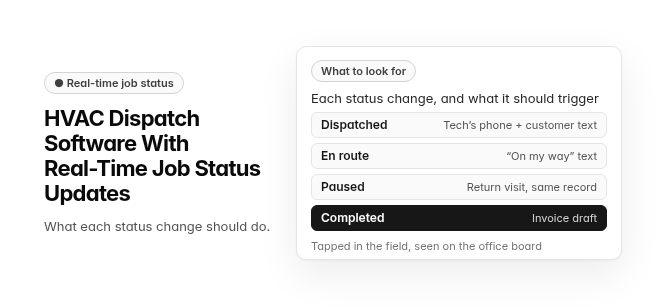
What to look for. Each status change, and what it should trigger: Dispatched (tech’s phone + customer text) · En route (“on my way” text) · Paused (return visit, same record) · Completed (invoice draft). Tapped in the field, seen on the office board.
HVAC dispatch software with real-time job status updates lets technicians change a job’s status from a mobile app, and that change shows on the office dispatch board right away and, in tools built this way, reaches the customer’s text thread too. In platforms that include vehicle tracking, the truck’s position also shows on a map.
The best setups go a step further. The right tech is sent by schedule, location and skills, and the job keeps one record from the first call to the paid invoice.
What does real-time job status mean in HVAC dispatch?
Real-time job status in HVAC dispatch means a few things happen together when a technician taps a new status in the mobile app:
- The office dispatch board updates.
- In platforms that include vehicle tracking, the tech’s position shows on a map.
- Any customer message tied to that status goes out.
Dispatchers stop calling trucks to ask “where are you?” The board already shows who is en route, who is on site and who has finished. Our guide to the dispatch board covers what a single board should show.
Status and location are different signals. A status tells the office what stage the job is in. In platforms that include vehicle tracking, a map tells the office where the truck is. Decide which of the two your office actually needs before you compare tools.
Which statuses should a technician app track?
An HVAC technician app should track seven job statuses. Platforms don’t share one vocabulary for them: one says “Working,” another says “In Progress,” and few define what each status should trigger. The table below is the standard this site holds dispatch software to.
This is a category model for comparing dispatch software, not a list of any one product’s statuses.
| Status | Who changes it | What the office sees | What it should trigger | Who is notified on commercial jobs |
|---|---|---|---|---|
| Unassigned | Office or call intake, when the job is booked | Job waits in the unassigned queue, flagged if urgent | Office alert for urgent no-heat or no-cool calls | No one yet |
| Dispatched | Dispatcher, matching by schedule, location and skills | Job appears on the assigned tech’s lane and phone | Booking confirmation with arrival window | Site contact gets the visit window |
| En Route | Technician, from the mobile app | Job marked as on the way | Customer “on my way” text; travel time logged | Site contact, the person who grants access |
| On Site / In Progress | Technician, on arrival | Job timer running; notes and photos arriving | Timesheet entry starts | Site contact; property manager only if the account requires it |
| Paused | Technician (waiting on a part, approval or access) | Job flagged as needing a return visit | Office alert to schedule the return | Property manager, if approval is needed to continue |
| Delayed | Technician or dispatcher, when running late | Late flag on the board; later jobs at risk | Updated arrival-window text to the next customer | Next site contact on the schedule |
| Completed | Technician, with photos and signature | Job closes; invoice draft created | Invoice draft; review request for residential customers | The billing party: property manager or tenant, according to the agreement |
The two statuses many dispatch boards skip are Paused and Delayed. Both change what the office should do next, so both deserve their own state rather than a note buried in the job. Our guide to the technician mobile app covers what techs need on their phones.
Category example · not a product screen
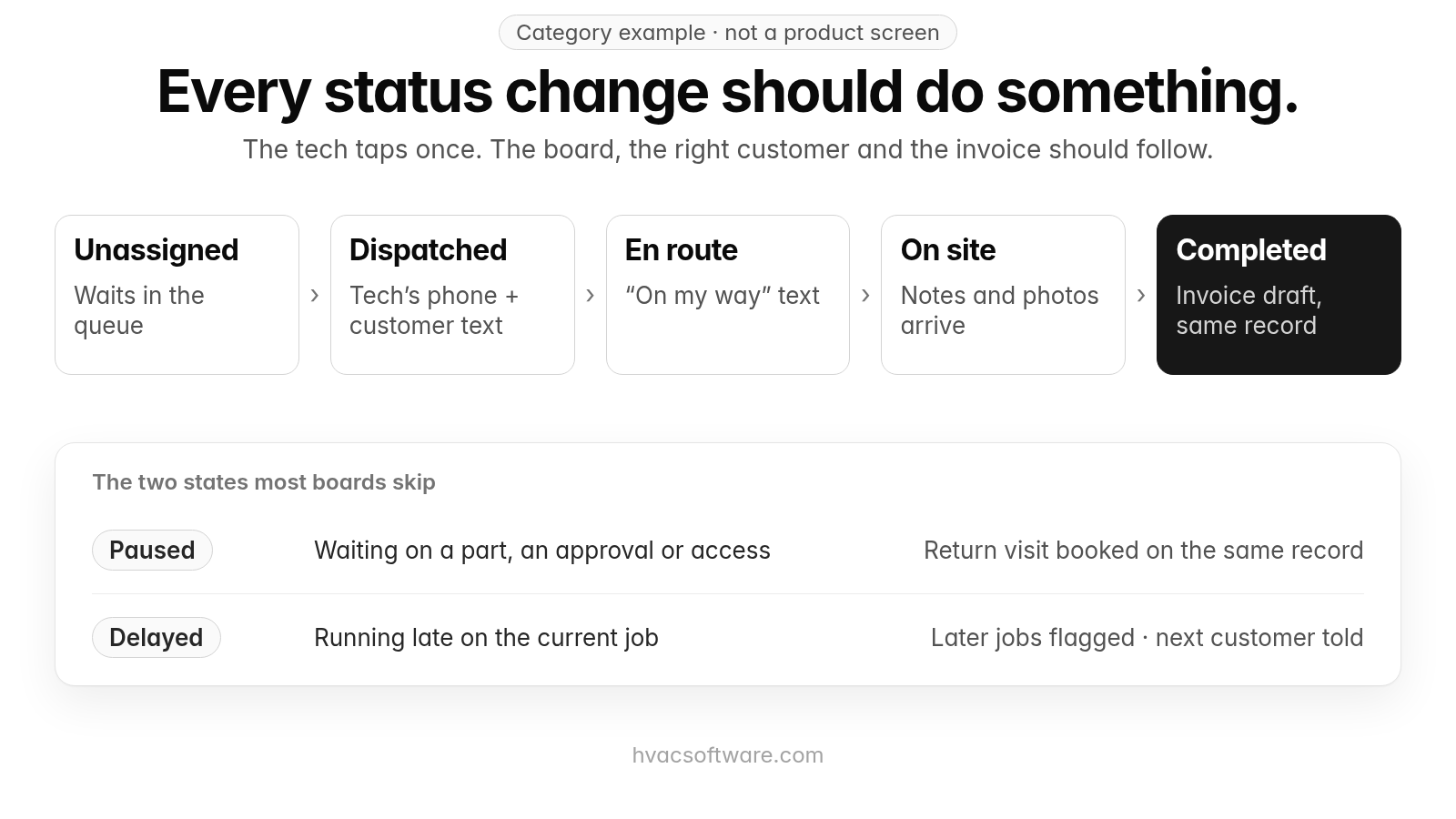
Every status change should do something.
The tech taps once. The board, the right customer and the invoice should follow.
- Unassigned: waits in the queue
- Dispatched: tech’s phone + customer text
- En route: “on my way” text
- On site: notes and photos arrive
- Completed: invoice draft, same record
The two states most boards skip:
- Paused: waiting on a part, an approval or access. Return visit booked on the same record.
- Delayed: running late on the current job. Later jobs flagged · next customer told.
How do customers get status updates?
Customers get status updates through texts that go out when the technician changes status. The most common is the “on my way” text, sent when the tech taps En Route. In platforms that include vehicle tracking, that text can carry an ETA. Our guide to customer text notifications covers which texts matter.
The question buyers should ask is whether the text depends on the tech tapping the button. If techs skip the tap, customers get nothing, and the office hears about it from an angry call. Check how each platform handles a missed status change before trusting it with customer communication.
How does job status reach the invoice?
Job status should reach the invoice by closing the same record the call started. When the tech marks a job Completed, the photos, signature, parts and labor already on the job should become an invoice draft. Nobody should re-key them.
A job that gets interrupted shows why one record matters:
- Dispatched: The job goes to a tech with the right certification for the equipment, chosen by schedule and location. Our guide to skills-based technician matching covers what to check.
- En Route: The tech taps the status, and the customer’s “on my way” text goes out.
- On Site / In Progress: The tech diagnoses the problem and finds a part isn’t on the truck.
- Paused: The job stays open on the board. The office schedules the return visit from the same record, not a new ticket.
- Completed: On the return visit, the tech finishes the work, captures a signature and closes the job. The invoice draft includes both visits.
Shops on paper job cards or disconnected tools can break this chain at step four, where a second ticket gets opened and the first visit’s labor goes missing.
Which HVAC dispatch software offers real-time job status updates?
Several platforms come up when HVAC buyers look for dispatch with real-time job status updates. The notes below come from each vendor’s own pages. Plans and add-ons change, so check current pricing pages and confirm in a demo which features your plan includes.
- Housecall Pro: Its dispatching page describes color-coded job statuses, “On my way” texts when a tech is en route, and vehicle tracking with GPS on a live map.
- Jobber: Its scheduling page describes real-time crew alerts for new assignments, reschedules and cancellations, plus “on my way” alerts to clients; its live GPS map is vehicle tracking that uses tracking devices installed in the vehicles.
- FieldEdge: Its site describes tracking job progress from a centralized dispatch board and syncing with QuickBooks.
- ServiceTitan: Its dispatch page describes real-time tracking updates sent to facility managers before technicians arrive, and lists Dispatch Pro as an add-on product.
Whichever you shortlist, ask the same three things: what happens when a tech forgets to tap a status, which plan includes customer texts and vehicle tracking, and whether commercial sites and units can be held per customer.
What key features should you look for?
Four features decide whether real-time job status actually works in an HVAC shop:
- Live Dispatch Board: Every job and every tech on one screen, with status changes from the field appearing the moment they happen.
- Mobile Field App: Techs tap status, attach photos, capture signatures and take payments from the same app that holds the job.
- Customer Status Texts: “On my way” texts go out when the status changes, with no dispatcher typing them. In platforms that include vehicle tracking, they can carry an ETA.
- Certification Matching: The board only offers jobs to techs with the right certifications, such as EPA 608 or a gas license.
Technician apps and dispatch boards each get their own deeper guides on this site, and the AI Dispatcher overview shows how they connect. This page covers the job statuses that connect them.
Which fits your shop?
Real-time status needs vary by team size, work mix and accounting setup. Use the questions below in demos rather than reading feature pages.
| Your shop | Status features to prioritize | What to verify in a demo |
|---|---|---|
| Small team, mostly residential | En Route texts, Completed to invoice | Ask what happens when a tech forgets to tap a status |
| Residential and commercial mixed | Status per site and unit; notifications by role | Ask who gets the En Route text on a commercial job: the property manager or the site contact |
| Mostly commercial, multiple sites | Paused and Delayed states; billing-party routing | Ask to see one job paused for a part and resumed on the same record |
| Larger operation with in-house admin staff | Board-wide visibility; reassignment | Ask about rollout time and ongoing admin load |
| Accounting in QuickBooks | Clean hand-off from Completed to invoice | Ask to see a completed job arrive in QuickBooks without re-entry |
Shops running several branches should also read our guide to multi-location dispatch.
How does FieldCamp fit an HVAC shop that wants real-time job status?
FieldCamp fits contractors running residential and commercial work in one system, with a person still deciding the day. Here is what FieldCamp does today, and what to ask in a demo.
This site is published by FieldCamp.
- On the dispatch board: When your dispatcher drags a job onto a technician, the board checks skills, drive time and schedule conflicts, and the dispatcher confirms the assignment.
- For the customer: The customer gets a text when a job is assigned or moved.
- For the technician: A technician’s assigned jobs and schedule show on their phone.
- One record: Each job stays on one record from the first call to the paid invoice.
- Residential and Commercial Together: Residential service calls and commercial maintenance work run in one system, not two.
- Who decides: A person still decides the day. Assignment stays a decision the dispatcher makes.
- What it doesn’t do: FieldCamp doesn’t do route optimization or vehicle tracking. Ask in the demo how technician status changes such as en route, on site, paused and completed, and who gets notified on commercial jobs, would fit your shop.
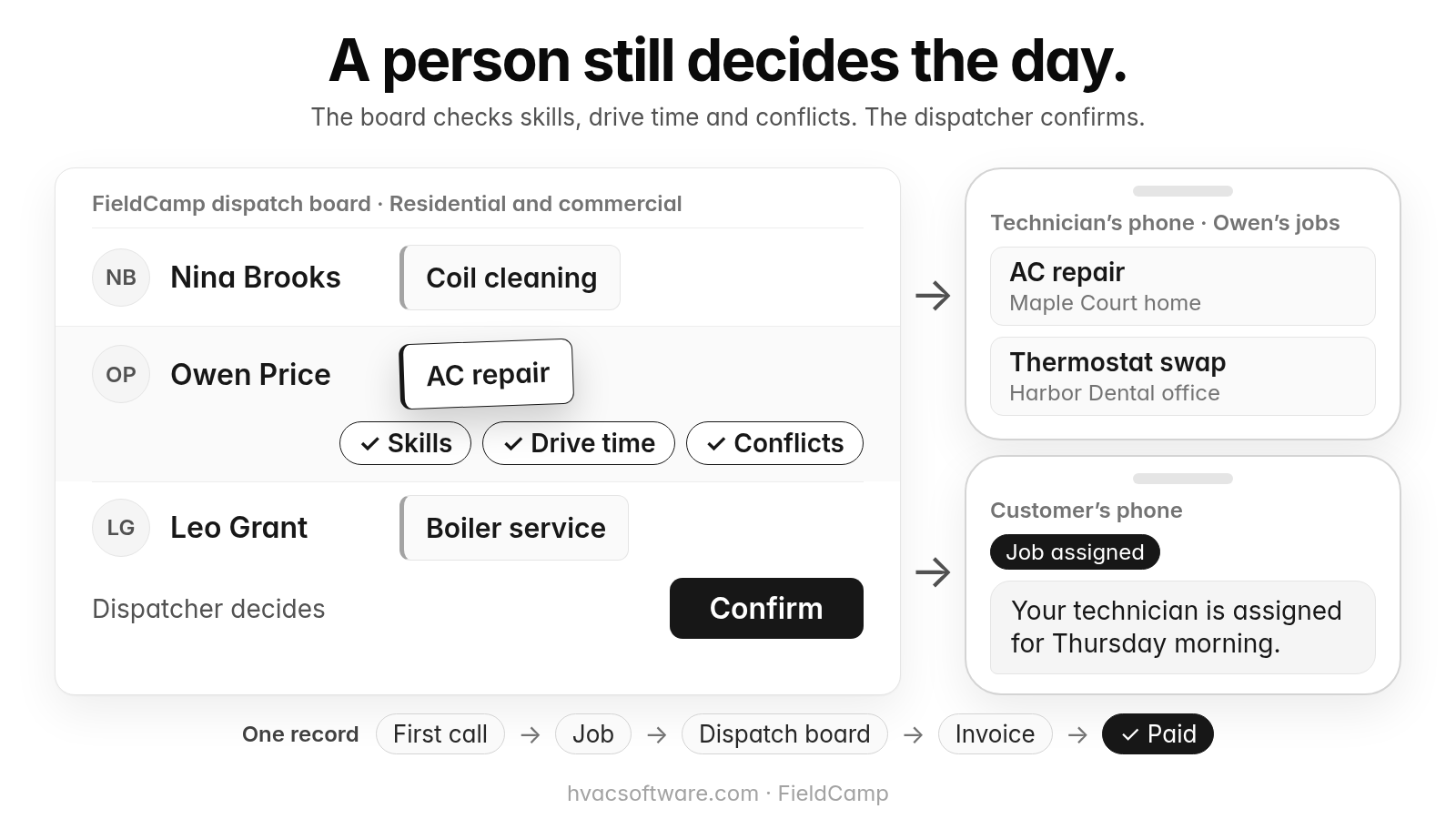
A person still decides the day.
The board checks skills, drive time and conflicts. The dispatcher confirms.
FieldCamp dispatch board · Residential and commercial: Nina Brooks: Coil cleaning. Owen Price: AC repair. Leo Grant: Boiler service.
- Skills
- Drive time
- Conflicts
Dispatcher decides: Confirm.
Technician’s phone · Owen’s jobs: AC repair (Maple Court home). Thermostat swap (Harbor Dental office).
Customer’s phone. Job assigned: "Your technician is assigned for Thursday morning."
One record: First call → Job → Dispatch board → Invoice → Paid.
Running residential and commercial work on one board? Book a 30-minute walkthrough and bring the statuses your techs use today.
Frequently asked questions
What does real-time job status tracking mean in HVAC dispatch?
It means the office sees each job’s stage as it changes, not at the end of the day. A technician taps a status such as En Route, On Site, Paused or Completed in the mobile app, and the dispatch board shows it right away. Job status is different from location: status says what stage the job is in, while a map of where the trucks are comes only with platforms that include vehicle tracking.
What is the best HVAC dispatch software with real-time job status updates?
The best fit depends on your team size, your mix of residential and commercial work, and whether you want invoicing on the same record or dispatch on its own. Shortlist tools on those three questions, then test the status flow in a demo: have a tech change a status, watch what the board and the customer see, and ask what happens when the tech forgets to tap. Lists and rankings change, so check each vendor’s current pages instead of relying on one.
How much does HVAC dispatch software with real-time job status cost?
It depends on the vendor, the plan and how many users or technicians you have. Features such as customer texts and vehicle tracking may sit in a higher plan tier or a paid add-on. Before you compare totals, ask each vendor which tier includes customer texts, vehicle tracking and accounting integration, such as a QuickBooks sync. Plans and add-ons change, so check current pricing pages.
Who should receive job status notifications on a commercial HVAC job: the property manager or the site contact?
It depends on the status. The site contact, who grants access, should typically get the visit window, the En Route text and the On Site update. The property manager is notified when the account requires it or when approval is needed to continue a Paused job. At Completed, the billing party (property manager or tenant, per the agreement) is notified. Confirm each platform’s recipient rules in a demo.
How can a dispatcher use Paused and Delayed statuses in daily HVAC operations?
Use Paused when a technician is waiting on a part, approval or access. The job is flagged as needing a return visit and the office gets an alert to schedule it. Use Delayed when a tech is running late: the board shows a late flag, later jobs are marked at risk, and the next customer receives an updated arrival-window text. Both statuses change what the office does next, so they work better as their own states than as notes.
Can one dispatch board handle emergency no-cool calls and scheduled work?
Yes, a well-built dispatch board should handle both. Urgent no-heat and no-cool calls are flagged in the unassigned queue with an office alert. The dispatcher then assigns the job by schedule, location and skills, and a Delayed flag on the board shows which later jobs are at risk. If a caller smells gas or a carbon monoxide alarm is going off, tell them to leave the building and call 911 or the gas utility first, then dispatch. If someone is in danger from heat or cold, tell the caller to call 911.
Final recommendation
Before you sign, write down the statuses your techs actually use, what each one should trigger and who should hear about it on a commercial job. Then ask every shortlisted vendor to show one job paused for a part and finished on the same record, and to show what the office and the customer see when a tech forgets to tap a status.